Turning My Desktop Margins into a Quiet Claude Code Dashboard
How I built a macOS desktop dashboard with Claude Code hooks, Ghostty, and Übersicht to track session status, permission prompts, and usage limits.
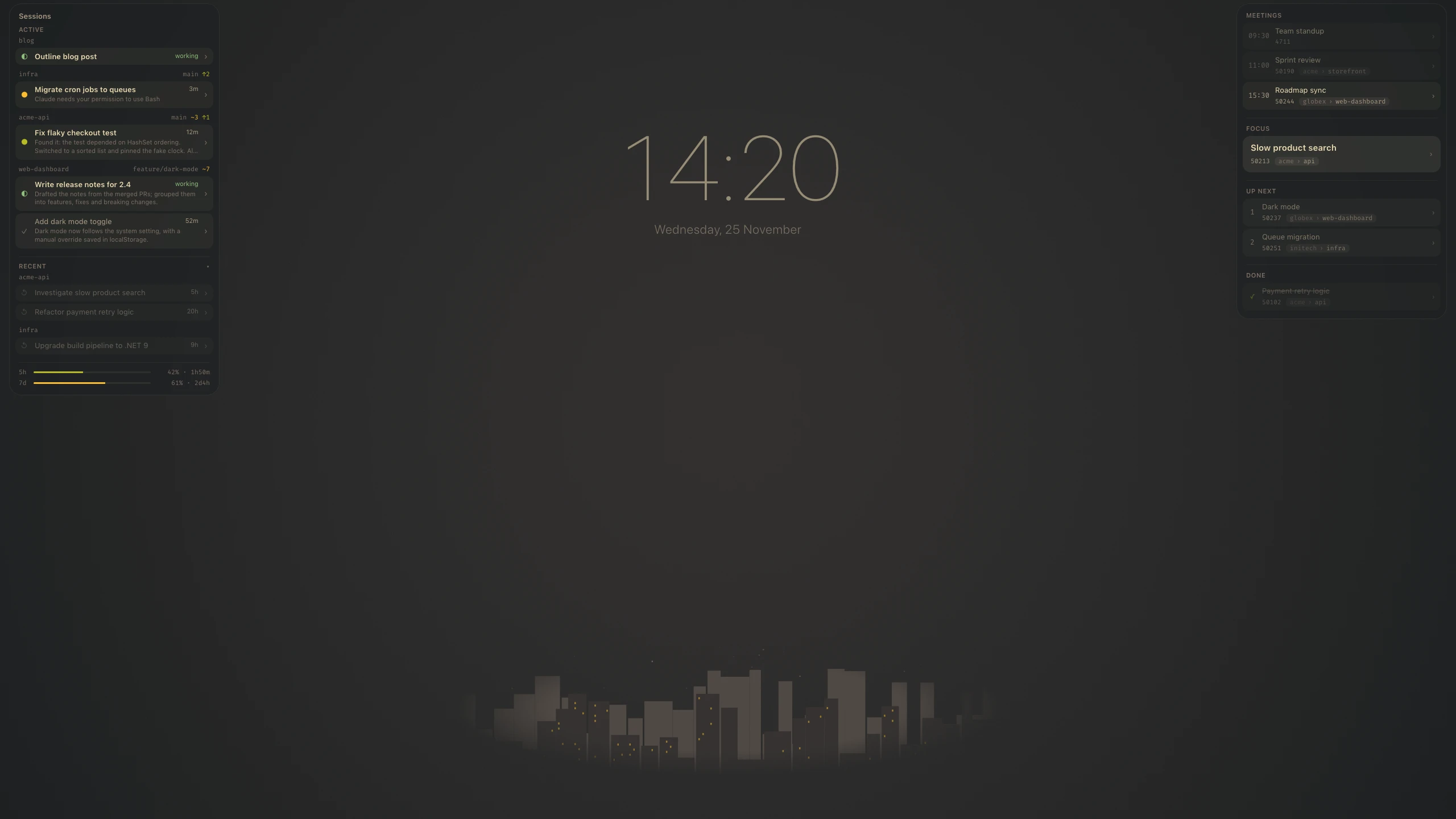
I work on a single 24” 1440p monitor with the laptop closed in a dock. Every app opens centered at two-thirds width (Rectangle’s “Center Two Thirds”), because looking at the far left edge of the screen all day while typing was tiring. That left two empty strips on the sides of the screen, and they ended up becoming the most useful part of my desktop.
This post covers what I put there, why, and what I learned along the way: Claude Code hooks, scripting Ghostty with AppleScript, Übersicht widgets, and how much a “tiny” desktop animation really costs.
The problem
Most of my day happens in Ghostty: one tab per project, splits when a project needs more than one terminal, and usually several Claude Code sessions running in parallel. The questions I kept asking were:
- Which session has finished and is waiting for me?
- Which one is still working?
- Which one asked for permission while I was in another tab?
- What was that session I closed yesterday, and how do I get back to it?
Switching through tabs to answer these is exactly the kind of context switch I wanted to avoid.
The canvas
- Wallpaper: a generated Gruvbox vignette, the same palette as my terminal, so the widgets look like part of the desktop rather than floating on it.
- Desktop icons: hidden (
defaults write com.apple.WindowManager StandardHideDesktopIcons -bool true). - Widgets: Übersicht. Each widget is a JSX file with a shell
command, arefreshFrequencyand a Reactrenderfunction. The shell side gives me full access to the machine; the render side gives me a real layout engine.
Final layout: Sessions on the left, Today on the right, a clock at the top center and a daily generative artwork at the bottom.
Sessions widget
Getting the data: Claude Code hooks
Claude Code can run a command on events. I use two:
Stop: a turn finished.Notification: Claude needs something (usually a permission prompt).
Both call one script that appends a line to a TSV log:
<epoch> <event> <title> <reply preview> <folder> <session_id> <cwd>- The title comes from the session transcript (
custom-title, thenai-title), falling back to the folder name. - The preview is the first ~300 characters of the last assistant message, flattened and stripped of markdown, so the widget can show a muted 1–2 line preview of the reply.
- The log is capped at 200 lines.
Reading Ghostty with AppleScript
Ghostty has a scripting dictionary: windows, tabs, terminals (one per split), each with a name and a working directory. The important detail is that Claude Code prefixes the terminal title with a status glyph:
✳when idle- a rotating
◐ ◓ ◑ ◒while working
So a single AppleScript call tells me which sessions are open (so the widget can split them into Active and Recent), which ones are working right now, and where each terminal lives on disk.
Things this enables:
- Click to focus: clicking a row selects the right tab and split and focuses it.
- Resume: clicking a recent (closed) session opens a new Ghostty tab in its folder with
claude --resume <id>as the initial input. Recent is capped at 10 sessions from the last 24 hours. - Seen marks: when Ghostty is the frontmost app, the front window’s title is recorded with a timestamp. A finished session shows a green dot until I actually look at it, then a quiet check mark.
- Working indicator: a busy session shows
◐ workinginstead of its age. - Git info: each workspace header shows the branch, uncommitted changes and unpushed commits (cached for 30s).
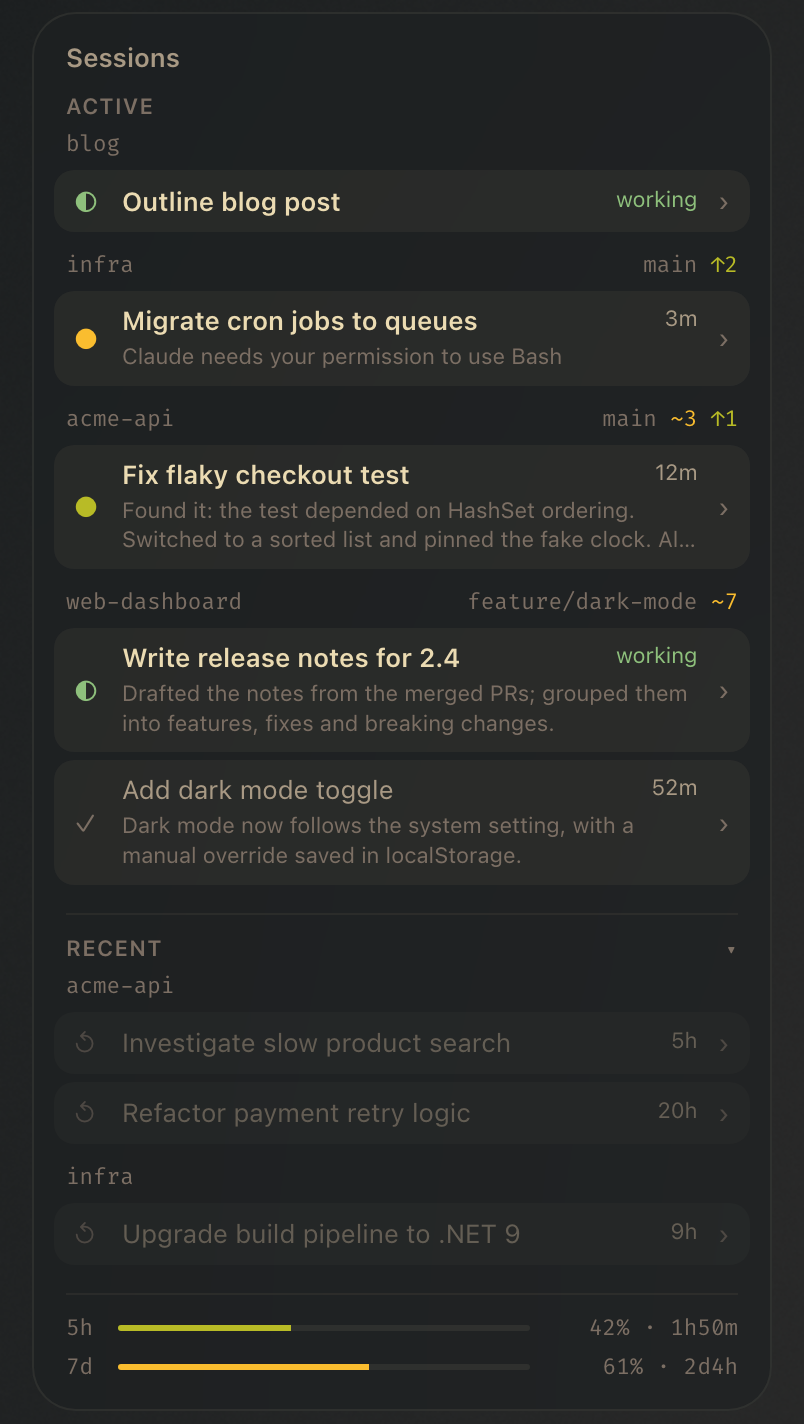
From top to bottom: a new session still on its first turn, one waiting for permission (yellow), a finished one I haven’t looked at yet (green), one still working, one I’ve already seen, then closed sessions I can resume and the usage bars.
Usage bars
The Claude Code status line command receives rate_limits (5-hour and weekly usage with reset times). My status line now also writes them to a small JSON file, and the widget draws two minimal progress bars from it.
The first version showed 11% while the status line said 20%. Every session updates its status line at different times, so an idle session kept overwriting the file with an old value. The fix is a merge rule: a snapshot with a later reset time always wins (new window), and within the same window the higher percentage wins (usage never goes down inside a window).
Edge cases that only showed up in real use
- Splits: a tab’s title is only its focused split’s title, so the script reads every terminal, not every tab.
- Brand-new sessions: the log only gets an entry when a turn ends, so a new session was invisible during its first turn. Busy terminals without any entry now get a placeholder row under their folder.
- Titles change: a session’s first
Stopcan be logged before Claude names the session, with the folder name as its title. Deduplicating by title produced ghost rows; deduplicating by session id fixed it. - Focus lost: the widget only noticed open sessions correctly while Ghostty was frontmost. The cause was a regex stripping the status glyph that also ate an empty line (see the gotchas below).
Today widget
The right margin is fed by my Obsidian daily note. It started as a full task list and got smaller with every iteration, because the full list already lives in the note. What survived:
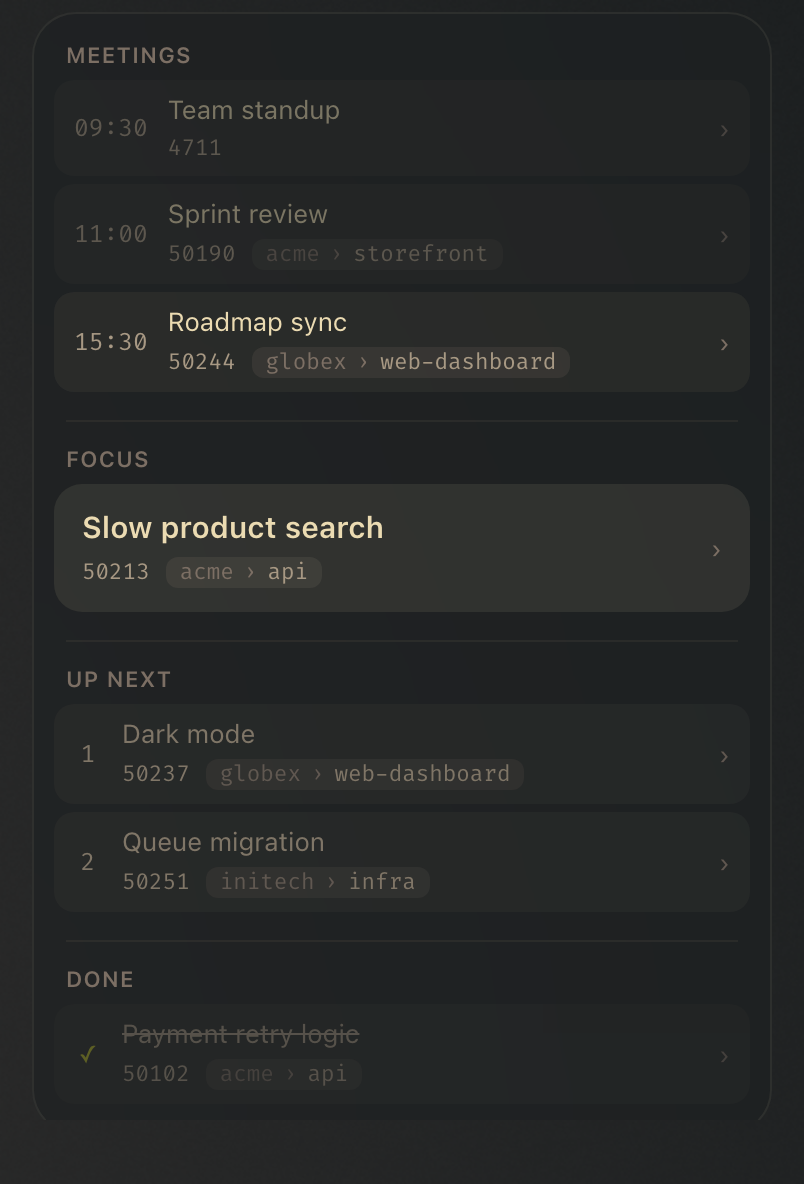
- Meetings: tasks that start with a time (
10:00 | [[meeting-...]]), sorted, with finished ones dimmed. - Focus: one large box with the work item I should be on. The rule is the same one my Obsidian home page uses: in the order I wrote them, the first task without logged effort that links to an active work item. Logging effort on a task moves the focus to the next one.
- Up next: the remaining planned items as a numbered list, each with its ticket id and context, so the order is obvious at a glance.
- Done today: items with logged effort stay at the end as struck-through, faded rows. Seeing what I already finished helps, and it’s a handy reminder when I log my hours in the evening.
Each part is its own section with a thin divider, and brightness carries the priority: the focus box is the only filled, bright element; the next meeting stays clear; up next is readable but muted; finished meetings and done items fade the most. An earlier version put up next in a two-column grid of tiles, which looked tidy but hid the order, so it became a numbered list.
Each meeting and work item shows its ticket id and a small customer › project chip, read from the linked note’s frontmatter with a few lines of awk. Clicking anything opens the note in Obsidian through an obsidian:// URI. When there is nothing to show, the widget disappears.
Clock and daily art
The top center has a large, thin clock. No panel, just text on the wallpaper.
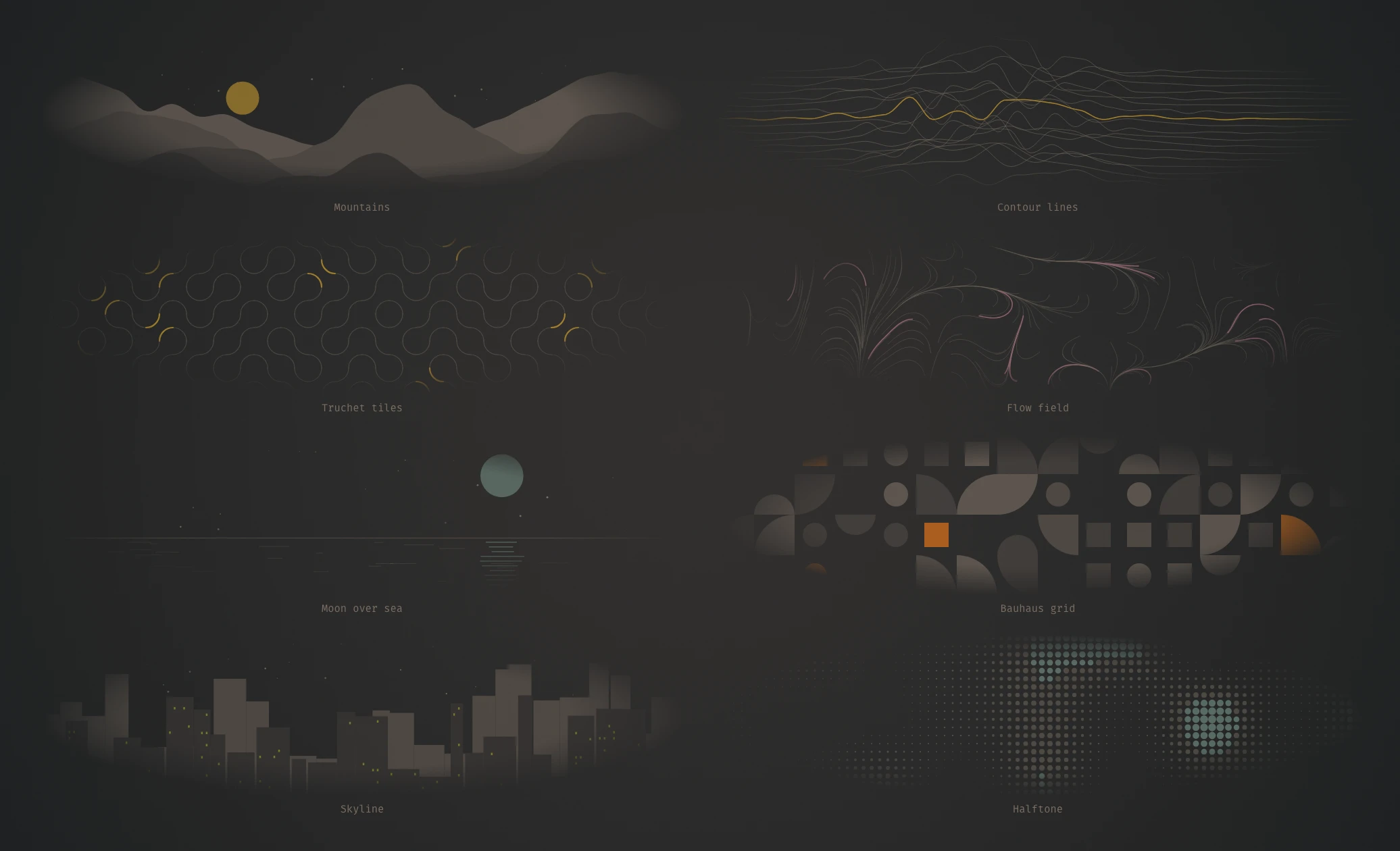
The bottom center has a small generative artwork that changes every day. The date is the random seed (FNV-1a hash of the date string fed into a mulberry32 PRNG), so the piece stays the same all day and is fully reproducible. The seed picks one of eight styles and an accent color from the Gruvbox palette:
- layered mountains with a sun
- contour lines peaking in the middle
- Truchet tiles
- a flow field
- a moon over the sea with a broken reflection
- a Bauhaus grid
- a city skyline with a few lit windows
- a halftone dot field
Everything is plain SVG built from 1D/2D value noise. No network, no API, no AI.
What a desktop animation actually costs
I wanted the art to move a little: twinkling stars, a breathing sun. Before shipping it I measured CPU, and the results were surprising enough to be the most interesting part of this project.
Übersicht renders all widgets in one full-screen WebKit layer on the desktop. Any repaint recomposites that whole layer, about 7 ms of CPU per frame on my machine, and it keeps running behind other windows because the desktop is never “hidden” as far as WebKit is concerned.
| Approach | Average CPU |
|---|---|
| Smooth CSS animation (60 fps) | ~40% of a core while running |
Stepped CSS keyframes (steps()) | ~7% |
| Re-render every 10s + stepped transitions | ~2.5% |
| Static | ~0.1–0.3% |
Moving the art to its own GPU layer (will-change) changed nothing. The cost is the number of frames, not what is in them. For decoration I only see when I look at the desktop, none of the animated versions were worth it, so everything stays static.
The same mindset helped the Sessions widget: it refreshes every 5 seconds, and four separate osascript calls per refresh became one, cutting the Ghostty part from ~0.21s to ~0.09s of CPU per refresh.
Gotchas
- No hover on the desktop layer. Übersicht widgets don’t reliably get hover or cursor changes, so clickable rows have to look clickable on their own: subtle button backgrounds and a
›chevron. tabinside a Ghostty tell block means Ghostty’s tab class, not the tab character. Definecharacter id 9outside the block.- macOS ships bash 3.2, which chokes on an apostrophe inside a heredoc inside
$(...), even in an AppleScript comment. - Stripping a leading glyph with
s/^[^\p{L}\p{N}]+//also strips a newline when the line is empty. Exclude\nfrom the class. - JS template literals eat backslashes in shell commands (
\[becomes[).String.rawkeeps awk and grep escapes intact. - Local UI state in Übersicht: to keep a collapsed section collapsed across the 5-second refreshes, the widget exports
initialStateandupdateState, handles Übersicht’s ownUB/COMMAND_RANevent for command output, and stores the preference inlocalStorage.
Things I tried and dropped
- macOS Spaces, Stickies and Obsidian pop-out windows for the margins.
- Splitting the screen in half, Ghostty window padding, a narrower prose width for Claude’s answers.
- Next meeting from the calendar: the new Outlook has no AppleScript support and my work calendar isn’t in macOS Calendar. The daily note turned out to be a better source anyway.
- Animated art (see above).